
Decky Loader Troubleshooting: Fix Common Steam Deck Problems
The plug icon has vanished from your Quick Access Menu. Or it is still there, but the menu will not open, a plugin shows a blank screen, or the store refuses to load. This decky loader troubleshooting guide works through those failures in the order worth trying them: quick checks first, then a dedicated fix section for each symptom, then advanced steps for the stubborn cases. Most readers will solve their problem in the first two sections.
Identify Your Decky Loader Problem First
Match what you see on your Steam Deck to a row in this table, then jump to that fix section. If more than one row fits, start with the one that appeared first.
Decky Is Missing From the Quick Access Menu
You press the three-dot button and the plug icon simply is not there, although Decky worked before. This is the classic post-update symptom, and it usually means the loader is not injecting into the Steam interface – not that your plugins were deleted. Head to the ‘not showing up’ section, and if a SteamOS update happened just before, the update-recovery section.
The Menu Appears but Does Not Open
The plug icon is present, but selecting it freezes, flashes, or does nothing. That pattern points at the loader’s interface or one plugin breaking the menu for everything else. Work through the ‘not working’ section, which separates a loader-wide failure from a single plugin dragging the menu down with it.
Only One Plugin Has Stopped Working
Everything else in Decky opens fine, but one plugin errors, shows nothing, or lost its feature. That is almost never a loader problem: plugins have separate developers and break on their own schedules. The fix pattern is update, reload, then reinstall that one plugin – covered inside the ‘not working’ and ‘Advanced’ sections.
The Plugin Store Does Not Load
You open the store icon and get a blank page, a spinner, or listings that never arrive, while your installed plugins still work. Store failures are usually connection or interface problems rather than loader failures. The plugin store section separates browsing failures from download failures, because they have different causes.
Steam Deck Shows a Black or Blank Screen
A black screen can mean four different things: only the Decky menu is blank, one plugin opens blank, the store is blank, or the whole Steam Deck display is black. The first three are Decky problems; the fourth may have nothing to do with Decky at all, and timing alone does not prove it caused it. The black screen section handles each case separately.
Quick Fixes to Try Before Advanced Troubleshooting
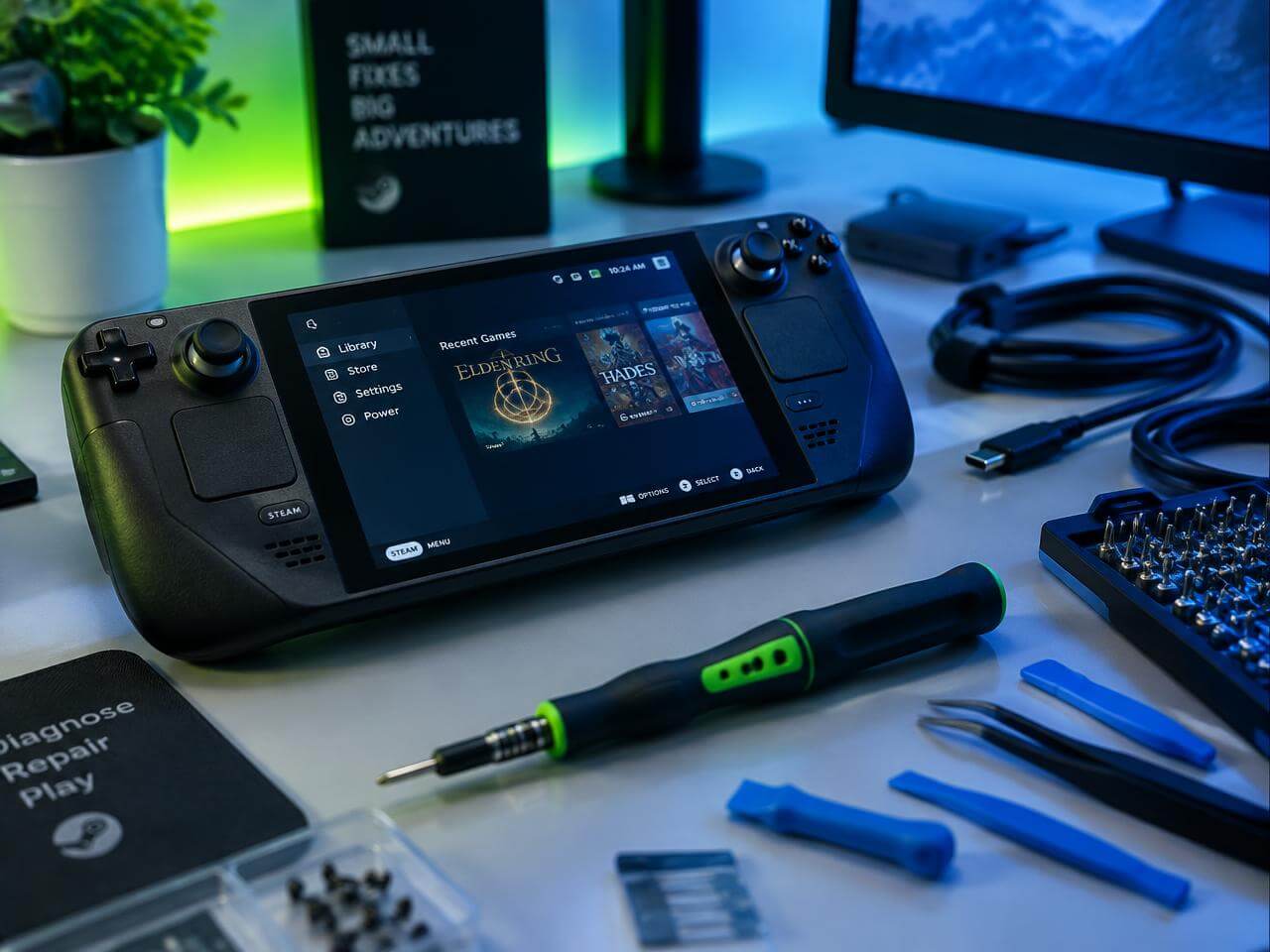
Before changing settings or reinstalling anything, run these five checks in order. They take a few minutes in total, they cannot make things worse, and they resolve a surprising share of Decky problems outright. Test Decky after each one and stop as soon as it works – knowing which check fixed it tells you what actually broke.
Restart Steam and Your Steam Deck
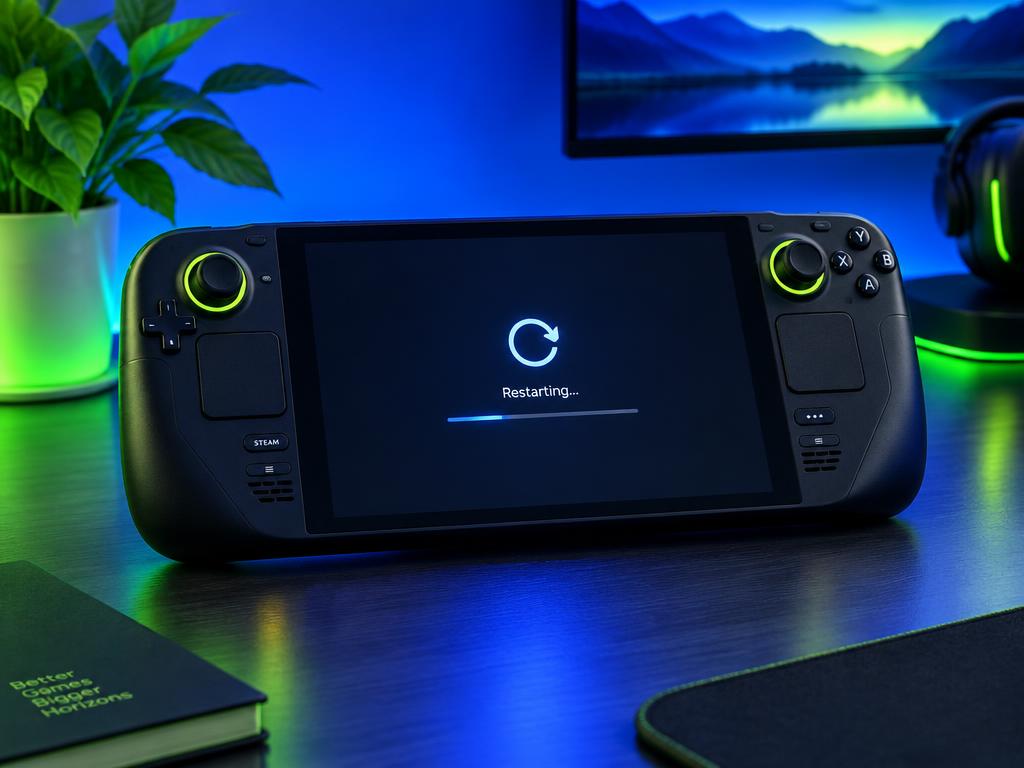
Try this first for almost every symptom. A full restart clears stuck background services and half-loaded interfaces in a way that waking from sleep never does – putting the Deck to sleep and waking it is not a restart. Use Steam button, Power, Restart, let Gaming Mode load fully, then open the Quick Access Menu and test Decky. If the problem survives a genuine restart, it is a real fault, not a glitch, and the sections below apply.
Complete Pending SteamOS and Steam Client Updates
Half-applied updates are a common hidden cause: SteamOS updated but the Steam client did not, or the reverse, leaving Decky caught between versions. Open Settings, System, and check for SteamOS updates; then let the Steam client update itself from its own menu if one is pending. While you are there, write down your SteamOS version, Steam client version, and Decky version, including whether each is a stable or testing build – those three details decide which compatibility notes apply to you.
Check Your Internet Connection
If the plugin store will not load, downloads fail, or plugins that fetch data misbehave, confirm the connection outside Decky first. Switch to Desktop Mode, open a browser, and load a couple of ordinary websites. If pages load there, your connection is fine and the problem lives inside Decky or the store. If pages fail there too, fix the Wi-Fi connection before touching Decky at all – no Decky setting can repair a dead network.
Switch From Beta to the Stable SteamOS Channel
If you are on the Beta or Preview SteamOS update channel, you are running a moving target: Valve changes interface internals in those builds first, and Decky (plus its plugins) often needs days to catch up. Open Settings, System, SteamOS Update Channel, and switch to Stable, then apply any update that offers and restart. Test Decky again before trying anything else in this guide – a large share of ‘it broke for no reason’ reports are simply Beta-channel changes arriving early.
Update Decky Loader and Installed Plugins
If the Decky menu still opens, update from inside it before reinstalling anything. Open the Decky tab in the Quick Access Menu, select the settings (gear) icon, and review your plugins: the same menu offers update, reload, and uninstall controls for each one. Apply pending Decky and plugin updates, then test. Updating first matters because several later fixes in this guide – removing plugins, reinstalling the loader – are only worth doing once everything is on its current version.
Experiencing Steam Deck system problems after an update? Refer to Valve’s official documentation for additional troubleshooting guidance.
Read Steam Deck Troubleshooting Guide ↗How to Fix Decky Loader Not Working
Use this section when the plug icon appears but the menu will not open, respond, or load correctly – the family of complaints behind searches like Decky Loader not loading, Decky Loader won’t open, and Decky Loader menu not working. Work down the fixes in order; each one rules out a layer, from a single plugin up to the loader itself.
Check Whether the Loader or a Plugin Is Causing the Problem
Try this before changing anything, because it decides the whole route. Open the Decky tab and test two things: another installed plugin, and the plugin store. If one plugin opens and the store loads, the loader is healthy and a single plugin is at fault – skip to disabling and removing plugins below. If everything fails at once, the problem is the loader or its interface, and the reload and reinstall steps are your path.
Reload the Decky Interface
When the menu is frozen or half-drawn, reload before you remove anything. Close the Quick Access Menu completely and reopen it; if the interface stays stuck, restart the Steam client by switching to Desktop Mode and back to Gaming Mode, which reloads the whole Gaming Mode interface Decky lives in. Individual plugins also have a reload control in Decky’s settings (gear icon). Expected result: the menu redraws cleanly and responds. If a reload fixes it only until the next sleep or restart, a plugin is likely re-breaking it – continue to the next step.
Disable Recently Installed Plugins
When the menu broke right after you added or updated a plugin, take that plugin out of the equation before blaming the loader. Open Decky’s settings (gear icon), find the plugin you changed most recently, and uninstall it from there – in practice this is how a plugin is disabled in Decky, and it is reversible: you can reinstall it from the store later. Test after each removal, one plugin at a time. Treat this as diagnosis, not proof: the newest plugin is the prime suspect, not a convicted culprit.
Remove an Incompatible Plugin
If testing points at one plugin – the menu works without it and breaks with it – remove it and leave it removed until its developer ships a fix. Check the plugin’s page or repository for compatibility notes about your SteamOS version first; if the developer has acknowledged the issue, an update is the real fix and reinstalling the same broken version changes nothing. Note that uninstalling a plugin removes its plugin files, but files or settings the plugin created elsewhere may remain – harmless leftovers, and the reason reinstalling a plugin often restores your old settings.
Reinstall the Stable Version
When the loader itself is the problem and reloads change nothing, repair the installation: re-run the official installer and choose Latest Release. This re-injects the loader into the Steam interface and replaces damaged loader files, and it is a repair, not a wipe – reinstalling over the top does not delete your installed plugins. The full installer walkthrough lives in our setup guide (/setup-guide); the update-recovery section below gives the shorter version of the same procedure. If Decky still will not open after a stable reinstall, go to the Advanced section.
How to Fix Decky Loader Not Showing Up
Use this section when Decky Loader is not showing up at all – the icon missing, the tab missing, Decky Loader installed but not showing in the three-dot menu. A missing icon means the loader is not injecting into the interface; it does not, by itself, prove your plugins are gone.
Confirm You Are Checking the Quick Access Menu
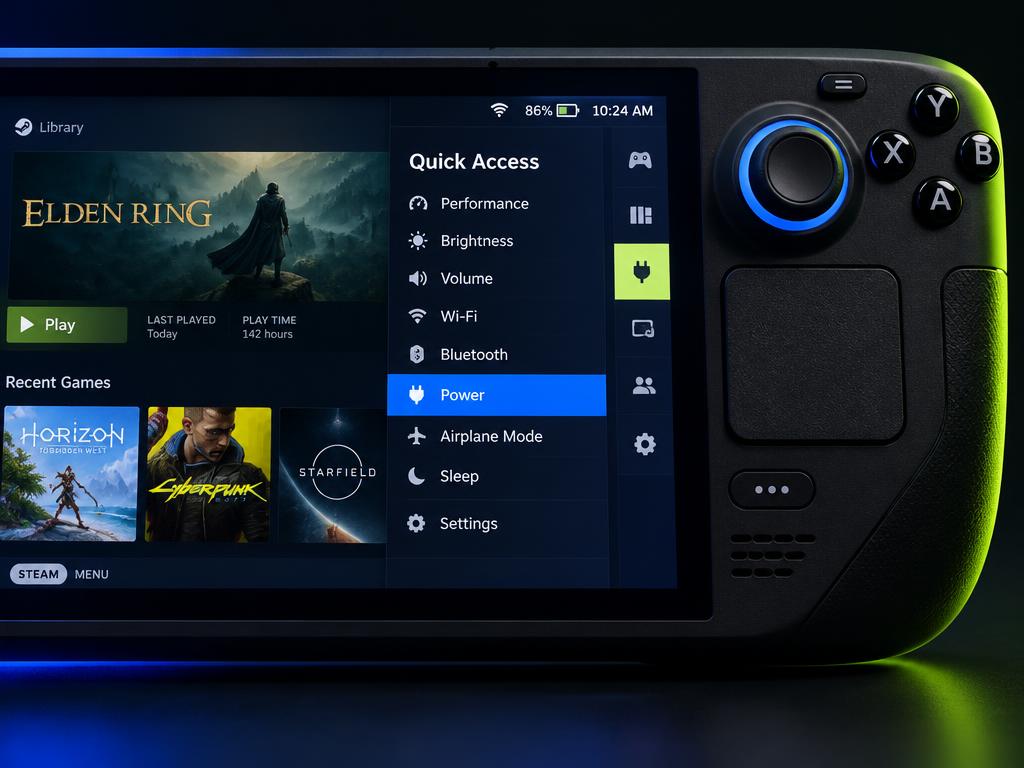
First, be sure you are looking in the right place – this sounds obvious and catches real cases. Decky lives in the Quick Access Menu: press the three-dot button on the right of the Steam Deck while in Gaming Mode, and look for the plug icon among the menu’s tabs. It does not appear on the Home screen, in your Library, or in Desktop Mode. If you have been checking anywhere else, you may not have a problem at all.
Restart Gaming Mode
If the icon was there before and vanished without an update, reload Gaming Mode before reinstalling anything. Switch to Desktop Mode (Steam button, Power, Switch to Desktop), wait for the desktop, then use the Return to Gaming Mode shortcut. Let the interface load fully and check the Quick Access Menu again. A plain device restart achieves the same thing. Expected result: the plug icon returns. If it does not, the loader service or an update is the likely cause – continue below.
Check Whether the Loader Service Is Running
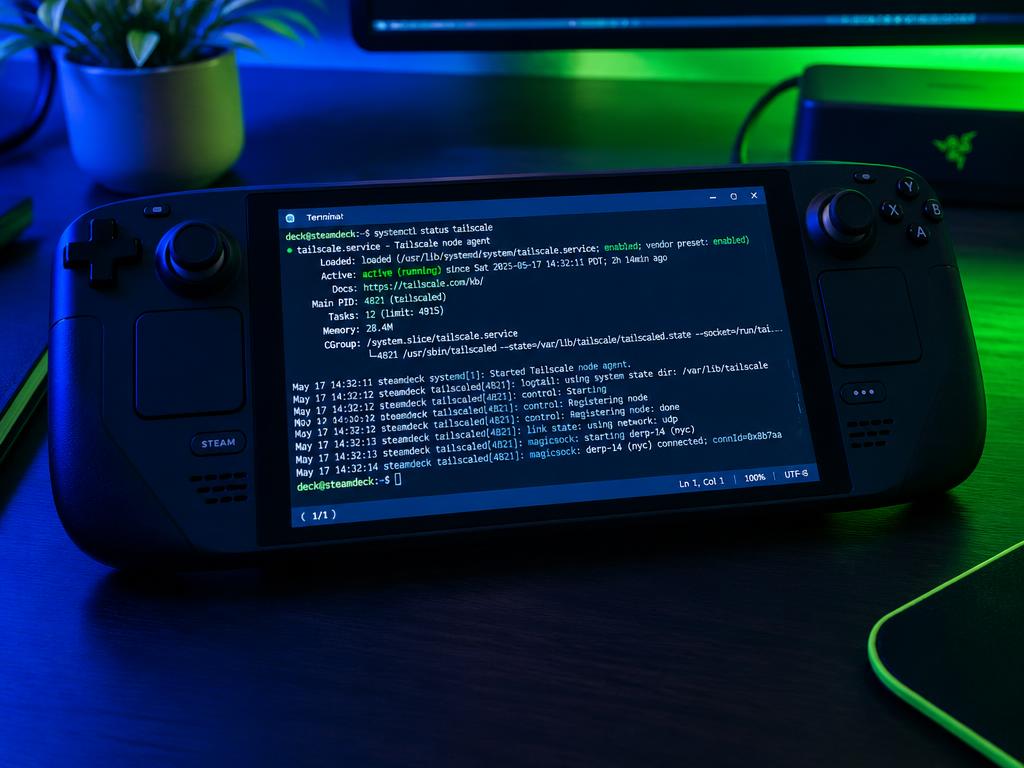
Decky runs as a background system service (plugin_loader.service), and if that service is stopped, no icon appears no matter how healthy your plugins are. Symptoms that point here: the icon is missing even though installation completed, and reinstalling plugins changed nothing. Checking and restarting the service involves two short terminal commands, kept in one place – the Advanced section’s ‘Restart the Plugin Loader Service’ – so work through the remaining checks here first if you prefer to avoid the terminal.
Check for Port 8080 or 1337 Conflicts
Decky needs ports 8080 and 1337 on the device itself, and another application already using one of them can stop the loader from starting – which shows up as a missing icon. Syncthing is the documented example: it may use port 8080 on the Steam Deck. If you run Syncthing or similar background tools, this is a prime suspect. The Advanced section explains how to identify the conflicting application before changing any settings.
Restore the Missing Plug Icon
If restarts change nothing, restore Decky with the official installer: Desktop Mode, run the installer, choose Latest Release, return to Gaming Mode. This is the project’s own recommended recovery when Decky disappears, and it repairs the loader without deleting your plugins. The step-by-step version is in the update-recovery section below. Only if a stable reinstall fails should you consider the prerelease branch or the clean reinstall in Advanced – in that order.
Fix Decky Loader After a SteamOS Update
Decky Loader not working after a SteamOS update is the single most common failure in this guide, and it has an official recovery path. SteamOS updates change the interface internals Decky injects into, so Decky Loader disappeared after an update does not mean you broke anything – it means the loader needs to re-inject itself against the new version.
01 Determine Whether Decky or Only Its Plugins Broke
Before reinstalling, pin down what actually changed. Did the failure follow a SteamOS update, a Steam client update, a Decky update, or a plugin update? Check the Quick Access Menu: if the plug icon is gone entirely, the loader broke. If the icon and menu work but one plugin errors, only that plugin broke, and reinstalling the loader would be wasted effort. Record the versions you noted in the quick fixes – ‘after an update’ is a clue, not a diagnosis.
02 Re-run the Stable Installer
This is the project’s recommended fix when Decky disappears after a SteamOS update, and it resolves most cases:
Switch to Desktop Mode (Steam button, Power, Switch to Desktop).
Run the official Decky installer – the same file or command you installed with originally.
Enter your password if prompted (or accept the temporary password, as during setup).
Choose Latest Release when asked which version to install.
Return to Gaming Mode and check the Quick Access Menu.
Expected result: the plug icon is back and the menu opens, with your plugins still installed. If stable does not restore Decky, the next step is the fallback the project itself suggests.
03 Try the Prerelease Version if Stable Does Not Work
If the stable reinstall does not bring Decky back, re-run the installer and choose Latest Prerelease instead. Prerelease builds carry the newest compatibility work, which is exactly what a fresh SteamOS change sometimes requires – the project recommends this order itself: stable first, prerelease if stable fails. Two cautions: prereleases are explicitly less settled than stable, and this is a fallback, not a promise that it fixes every compatibility problem. Once a stable release catches up, switch back to Latest Release.
04 Update Plugins One at a Time
With the menu working again, turn to the plugins – separately, and one at a time. Open Decky’s settings (gear icon), apply any pending update for the first plugin, then test that plugin before touching the next. One-at-a-time matters: if you update five plugins and something breaks, you have learned nothing about which one did it. If a plugin has no update and stays broken, its developer may still be working on compatibility – check the next step rather than reinstalling the loader again.
05 Remove Plugins That No Longer Support Your SteamOS Version
Some plugins never catch up: the developer moves on, and the plugin’s compatibility ends at an older SteamOS. Check the plugin’s page or repository for its supported versions and last update date. If it no longer supports your SteamOS version, remove it from Decky’s settings and leave it out – a permanently incompatible plugin can keep breaking the menu for everything else, and no loader reinstall will fix a plugin that is simply done. Look for a maintained alternative in the store instead.
How to Fix the Decky Loader Black Screen
Searches for a Decky Loader black screen or blank screen cover four different faults, and the fixes differ – so identify yours first. Only the Decky menu is blank; one plugin opens to a blank screen; the plugin store is blank; or the entire Steam Deck display is black. Work through the matching steps, and keep the full-device case separate: a black screen after installing Decky is not automatically caused by Decky.
Restart the Steam Interface
For a blank Decky menu or blank plugin screen, reload the interface before removing anything: close the Quick Access Menu, then switch to Desktop Mode and back to Gaming Mode to reload the Steam interface completely. Retest the exact screen that was blank. If it renders now, the fault was a stuck interface state. If one specific screen stays blank while others load, the problem is narrower than the loader – continue with the theme and plugin steps below.
Disable Interface and Theme Plugins
If the blank screen began after a visual change, interface and theme plugins are the prime suspects – CSS Loader themes above all, since they restyle the very menus you are trying to open. Take the theme or interface plugin out via Decky’s settings (gear icon): switch the theme back to default and, if needed, uninstall the plugin, then retest. This isolates the cause; if the screen returns, the theme or plugin version was incompatible, and re-adding it before an update will simply repeat the failure.
Remove the Most Recently Added Plugin
When the blank screen started right after an installation, remove the most recently added plugin first, then retest the affected screen. Work backwards through recent additions one at a time, testing after each removal, rather than stripping everything at once. If the screen recovers after removing a particular plugin, you have found the conflict; check that plugin’s page for compatibility notes before reinstalling it, and wait for its update if one is pending.
Reset a Broken Plugin Configuration
Sometimes the plugin is fine and its saved settings are not – a corrupted or outdated configuration can blank its screen on every launch. Reset a plugin’s configuration only when the plugin’s own documentation describes a reset option or settings file, and back up the existing settings first if you would struggle to recreate them. Expect to lose the customizations stored in that configuration. What you should not do is delete the entire Decky or homebrew folder on a guess: that destroys every plugin’s data to fix one plugin’s settings.
Recover When the Quick Access Menu Is Invisible
If a theme or plugin has made the Quick Access Menu itself unusable, work around it rather than through it. Use the Steam button’s Power menu to restart the device, or switch to Desktop Mode. From Desktop Mode, open Dolphin and move the suspect plugin’s folder out of the homebrew/plugins folder, then return to Gaming Mode – Decky will load without it. This is a last resort for a menu you genuinely cannot open; once recovered, fix or remove that plugin properly through Decky’s settings instead of leaving moved folders behind.
How to Fix the Decky Loader Plugin Store Not Working
A Decky Loader plugin store not working complaint splits in two: the store never loads, or it loads but cannot install anything. Those are different faults, so note which one you have – and write down the exact error message if one appears, word for word. Guessing at a paraphrase wastes more time than any step below.
Check the Network and DNS Connection
Start by checking your internet connection. Make sure your device is connected to a stable network and that DNS settings are working correctly.
If the connection is unstable, try restarting your router or switching to another network. You can also check whether your DNS settings are configured correctly.
Reload the Plugin Store
Close the plugin store completely, reopen it, and refresh the page to check whether the problem is resolved.
If the store still does not load, clear your browser cache and try opening it again.
Fix Blank or Empty Store Page
A blank store page usually indicates that the website is not loading correctly. Check your browser settings and internet connection.
Disable conflicting browser extensions temporarily and reload the page to see if the content appears.
Fix the Plugin Install Button Not Working
If the install button does nothing, check whether the required permissions are enabled.
Refresh the page and try again. Also make sure your browser is updated to the latest version.
Fix Plugins That Will Not Download
If a plugin download gets stuck, check your internet connection and available storage space.
Try downloading again after refreshing the page. Browser download restrictions may also prevent files from downloading.
Check for Temporary Server Service Outages
Sometimes the problem is caused by temporary server outages rather than your device.
Check the service status page for announcements about maintenance or technical issues. Try again when the service is restored.
Advanced Decky Loader Troubleshooting
These steps use the terminal and the loader’s internals. They are safe when followed exactly, but they assume the quick fixes and the symptom sections above did not work. Change one thing at a time, and note what you did – if you end up asking the project for help, that list becomes your bug report.
Restart the Plugin Loader Service
If the plugin loader service is not responding, restart the service to restore normal functionality.
Alternatively, restart the plugin loader service and check whether it starts successfully.
This will help determine whether the issue is caused by a temporary service failure. If the problem continues, proceed with the following troubleshooting steps.
Check for Background Service Conflicts
The issue can sometimes be caused by another background service running at the same time. These services may compete for system resources, interrupt communication, or prevent the plugin loader from operating correctly.
Check running processes, disable unnecessary services temporarily, and restart the loader to identify possible conflicts.
Review Loader and Plugin Error Logs
Error logs provide useful information about why the plugin loader is failing. Look for missing dependencies, permission problems, and connection errors.
Reviewing these messages can help identify the underlying problem and determine which component needs attention.
Test Decky Without Third-Party Plugins
Third-party extensions can sometimes interfere with the plugin loader. Disable non-essential plugins temporarily and test the system again.
If the problem disappears, enable plugins individually to identify which extension is causing the conflict.
Perform a Clean Reinstallation
If the loader continues to experience problems, reinstalling the plugin loader may help resolve corrupted files or missing components.
Before reinstalling, back up important configurations and review the installation instructions. Then reinstall the latest supported version and test its functionality.
How to Prevent Decky Loader Problems
Most Decky failures are not random – they follow updates and rushed plugin changes. These five habits prevent the majority of what this guide fixes, and they cost almost nothing.
Use Stable SteamOS and Decky Releases
Stay on the Stable SteamOS channel and the Latest Release build of Decky unless you have a specific reason not to. Beta channels and prerelease builds are where compatibility breaks first and gets fixed last. Treat switching branches as a temporary diagnostic step – as in the update section – not a permanent home.
Update Plugins Before and After System Updates
Before applying a SteamOS update, update your plugins; after the update, check them again and test the ones you rely on. Plugin developers often ship compatibility fixes within days of a SteamOS release, and running the newest plugin versions is the cheapest insurance against the post-update failure this guide spends a whole section on.
Install Plugins From Trusted Sources
Use the built-in plugin store, and treat install-from-URL as an exception for sources you have verified. A plugin runs with real access to your device; the store’s review process is not a guarantee, but it is a filter that random download links do not have. When a plugin asks for unusual access, its documentation should explain why.
Avoid Installing Too Many Plugins at Once
Install one plugin, test it, then install the next. Batch-installing five plugins feels efficient until something breaks and you cannot tell which of the five did it – the isolation work in this guide exists precisely because that shortcut backfires. The same discipline applies to updates: one at a time, with a quick test between.
Keep Track of Recent Changes
When something breaks, your first diagnostic question is ‘what changed?’ – make sure you can answer it. Note the date when you update SteamOS, switch branches, or add a plugin you are unsure about. Thirty seconds of notes turns a weekend of guessing into a five-minute fix, because nearly every section of this guide starts from that one detail.
Decky Loader Troubleshooting FAQs
Getting Back to a Stable Decky Loader
Almost every Decky failure in this guide ends the same way: identify the symptom honestly, try the quick fixes, isolate whether the loader or one plugin is at fault, and only then reach for reinstalls and terminal commands. That order is the whole method. If Decky is new to you rather than broken, our Decky Loader features and plugins overview (/) explains what the loader and its plugins do, and the setup guide (/setup-guide) covers a clean first installation – the best troubleshooting, as the prevention section shows, is a setup that rarely needs it.