
15 Best Decky Loader Plugins for Steam Deck in 2026
SteamOS is good out of the box, but it leaves obvious gaps: no themes, no custom artwork for the games you add yourself, no completion times in your library, and performance controls that stop where advanced users want to start. The best Decky Loader plugins close those gaps inside Gaming Mode. This list covers fifteen plugins that solve real problems – interface themes, library artwork, hardware controls, storage cleanup, emulation extras, and non-Steam library access – and explains who each one is actually for.
A note before the list: Decky plugins are community software, and availability or compatibility can shift after SteamOS or Steam client updates. Every pick below is an established plugin in Decky’s ecosystem at the time of writing, but check a plugin’s listing and recent updates before installing, and add plugins one at a time so any problem has an obvious culprit.

Best Decky Loader Plugins at a Glance
| Plugin | Main Purpose | Best For |
|---|---|---|
| CSS Loader | Interface themes | Customization |
| SteamGridDB | Custom game artwork | Library appearance |
| PowerTools | Hardware controls | Advanced users |
| ProtonDB Badges | Compatibility ratings | Choosing games |
| HLTB for Deck | Completion estimates | Backlog management |
| Animation Changer | Boot animations | Personalization |
| Audio Loader | Custom system sounds | Personalization |
| Bluetooth | Quick device controls | Headphones and controllers |
| Decky Storage Cleaner | Storage cleanup | Freeing disk space |
| AutoFlatpaks | Desktop-app updates | Easier maintenance |
| TabMaster | Custom library tabs | Large libraries |
| Pause Games | Application suspension | Multitasking |
| DeckSettings | Community game settings | Performance tuning |
| Emuchievements | RetroAchievements data | Emulation |
| Junk Store | Non-Steam libraries | Epic, GOG, and other supported stores |
Short on time? Beginners should start with SteamGridDB, ProtonDB Badges, and HLTB for Deck – visible benefits, zero tuning risk. If customization is your thing, add CSS Loader, Animation Changer, and Audio Loader. PowerTools belongs at the end of the list for most people: it is genuinely powerful, and it rewards users who already understand performance settings.
CSS Loader: Customize the Steam Deck Interface With Themes
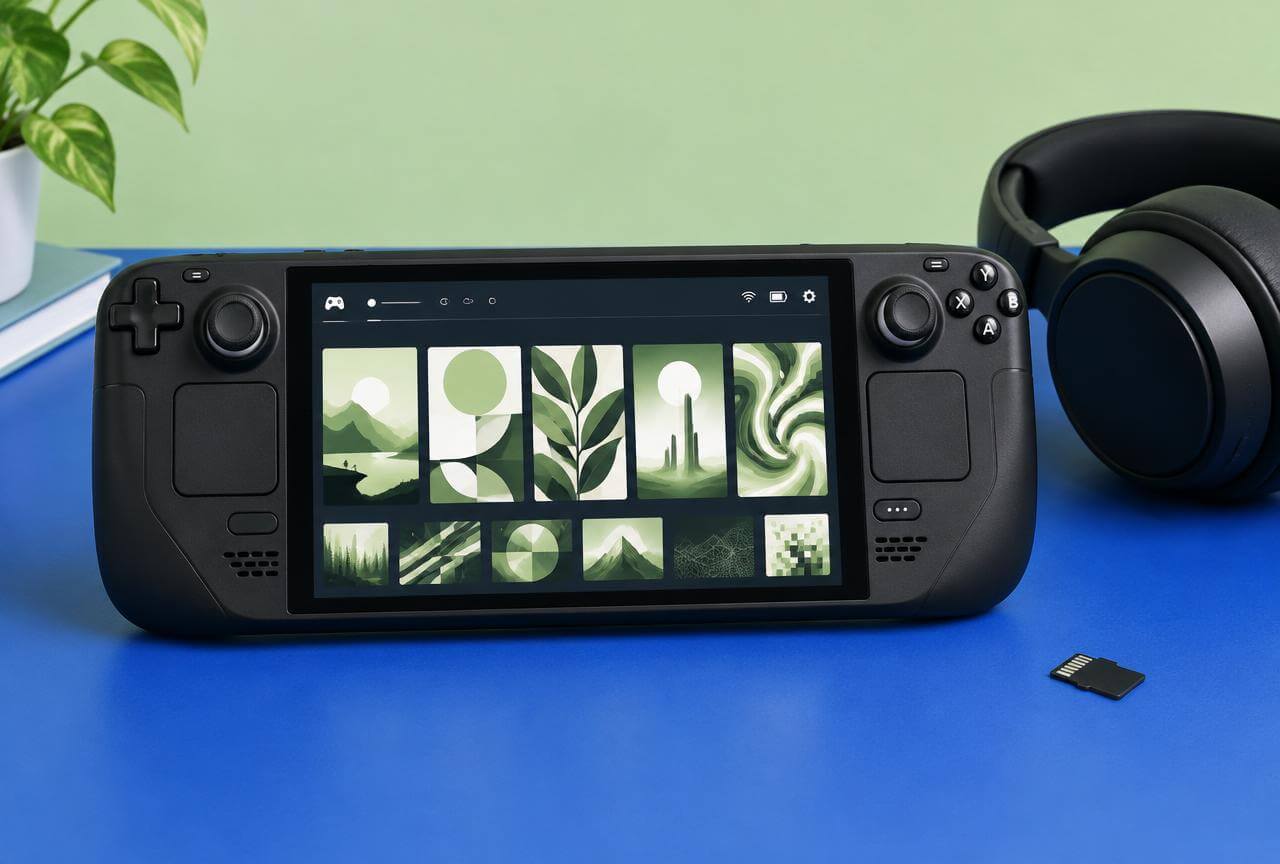
CSS Loader is the theme manager for SteamOS: it changes how Gaming Mode looks – colors, fonts, menus, home-screen layout – without you editing system files by hand. If you install only one customization plugin, this is the one the rest of the theme ecosystem is built around.
Best for: Customization
What Does the CSS Loader Plugin Do?
CSS Loader gives you access to a library of community-created themes that you can enable, disable, and combine from its Decky menu. One theme might only change the color scheme while another rearranges the home screen layout, so stacking compatible themes lets you build an interface that is yours in layers. Because themes are applied through the plugin rather than by patching Steam’s files, turning one off is just a toggle, not a repair job.
Why CSS Loader Is Worth Installing
It is the easiest meaningful personalization available on the Steam Deck: a few minutes in Gaming Mode and the whole device feels different, with every change reversible from the same menu. Be clear about what it is, though – CSS Loader is purely cosmetic. It does not increase frame rates, fix performance problems, or change how any game runs. Its value is that your Deck looks and feels the way you want, nothing more and nothing less.
Best CSS Loader Themes for Steam Deck
Rather than chasing specific theme names that may come and go, browse by category: home-screen redesigns that change the layout of your library’s front page; smaller game-cover layouts that fit more titles on screen; custom color schemes; clean Quick Access Menu themes; and rounded or transparent interface elements for a lighter look. Install a few at a time and test as you go – overlapping themes that both restyle the same element are the main cause of visual glitches.
SteamGridDB: Add Custom Artwork to Your Steam Library
SteamGridDB replaces game artwork – covers, hero images, logos, and icons – from inside Gaming Mode. Its real value shows up the moment you add a game Steam did not sell you: instead of a grey box or a stretched banner, your library can look like every title belongs there.
Best for: Library appearance
What Does the SteamGridDB Plugin Do?
The plugin connects Decky to the SteamGridDB community artwork database and lets you search and apply artwork for any game in your library without switching to Desktop Mode. It handles the different artwork types Steam uses – vertical grid covers, wide capsule images, hero banners, logos, and icons – and many games have dozens of designs per type, including animated options. Pick a design, preview it in place, and apply it; change your mind later and swap it in seconds.
Why SteamGridDB Is Useful for Non-Steam Games
Games you add manually – through third-party launchers, emulation tools, or as non-Steam shortcuts – often arrive with missing, tiny, or badly cropped artwork, and a wall of grey placeholders makes a big library genuinely harder to browse. SteamGridDB fills those gaps with properly sized community artwork, so emulated classics and Epic or GOG titles sit next to your Steam purchases looking like first-class citizens. For anyone with a mixed library, this plugin is close to essential.
How to Change Steam Deck Game Artwork
The process is the same for any title: select the game in your library, open its options menu, choose the SteamGridDB entry, pick the artwork type you want to replace, browse the available designs, and apply the one you like. The change is visual only – it does not touch the game, its files, or your saves – so there is no risk in experimenting until a cover suits the rest of your library.
PowerTools: Get Advanced Steam Deck Performance Controls
PowerTools hands you the hardware controls SteamOS keeps out of reach: CPU behavior, simultaneous multithreading (SMT), clock and power-related settings, and more, depending on your Steam Deck model and the plugin version. It is the most powerful plugin on this list and the one that deserves the most respect.
Best for: Advanced users
What Does the PowerTools Plugin Do?
Where Steam’s built-in performance overlay stops at frame-rate limits and a TDP slider, PowerTools goes further into how the processor itself behaves – options such as toggling SMT, setting CPU frequency behavior, and related hardware controls, with the ability to keep different configurations for different games. A title that stutters because it uses threads badly can behave very differently with SMT off, for example. Available settings genuinely differ between Steam Deck models and software versions, so expect your menu to reflect your hardware, not a screenshot from someone else’s.
When PowerTools Can Improve Game Performance
The clearest wins appear in emulation and in games whose engines clash with the Deck’s default thread behavior: an emulator or older title that performs poorly spread across all threads may run noticeably better with a tested configuration. Some games also benefit from steadier clocks at lower power. The honest framing matters: results differ by game, and a setting that rescues one title can make another worse. PowerTools improves performance when a specific bottleneck matches a specific control – it is a scalpel, not a boost button.
PowerTools Settings You Should Change Carefully
Treat every control here as an experiment with a rollback plan. Aggressive settings can cause instability, extra heat, shorter battery life, or worse performance than stock. Work like a technician: change one option at a time, write down the original value before you touch it, and test the exact same game scene before and after. If a change does not clearly help that scene, revert it. Users who follow that discipline love PowerTools; users who drag every slider at once tend to blame the plugin.
ProtonDB Badges: Check Game Compatibility From Your Library
ProtonDB is the community database where Linux players report how Windows games actually run through Proton. This plugin puts that verdict on the game’s page in your library as a badge, so compatibility research happens where you already are – no browser, no separate search.
Best for: Choosing games
What Does the ProtonDB Badges Plugin Do?
The plugin displays a game’s ProtonDB rating directly on its library page, alongside Steam’s own labels. The badge reflects aggregated community reports about running that game on Linux and the Steam Deck: whether it launches, how it performs, and whether workarounds are needed. It turns a vague worry – ‘will this even run?’ – into a visible signal at the exact moment you are deciding what to download or buy next.
How ProtonDB Ratings Help Steam Deck Users
Community reports routinely surface what a store page cannot: a game that needs a specific Proton version, a launcher that misbehaves, a control scheme that needs remapping, or performance that only holds at reduced settings. That detail helps you set expectations before a 60 GB download, not after. Treat the rating as guidance, not a guarantee – results shift with game updates, Proton releases, and your own settings, and a medal earned a year ago may not describe today’s build.
Who Should Install ProtonDB Badges?
Install it if you regularly try games outside Steam’s Verified list: older PC titles from sales, indie games that were never submitted for Deck review, or anything you own on other stores and run through Proton. If your library is entirely Deck Verified games you already know well, the badge adds little. For explorers, it is one of the highest-value, zero-effort plugins here – it asks nothing of you and informs every purchase decision.
HLTB for Deck: See How Long Games Take to Complete
HLTB for Deck shows HowLongToBeat completion estimates on game pages, answering the question every backlog owner asks while scrolling: ‘Do I actually have time for this one?’ It is a small plugin with an outsized effect on what you choose to play.
Best for: Backlog management
What Does HLTB for Deck Show?
The plugin displays the familiar HowLongToBeat time categories for a game – main story, main story plus extras, and a completionist run – drawn from times submitted by players who finished it. The figures appear where you make decisions, on the game’s page, so comparing a 12-hour story against a 90-hour epic takes a glance rather than a web search. Remember these are community averages: your pace, difficulty choice, and curiosity will move your real time in either direction.
Why HLTB for Deck Is Useful for Managing Your Backlog
A backlog stops feeling infinite when it has numbers attached. With completion times visible, you can pick a short game that fits a free weekend, deliberately save the hundred-hour RPG for a holiday, or clear three small titles instead of stalling inside one enormous one. It also exposes the true size of your library’s commitment – many players find that simply seeing the estimates changes what they install, buy, and finally finish.
Animation Changer: Install Custom Steam Deck Boot Animation
Animation Changer replaces the short animation your Steam Deck plays when it boots or wakes, drawing from a community library of alternatives. It is the finishing touch of the customization trio alongside CSS Loader and Audio Loader.
Best for: Personalization
What Does Animation Changer Do?
The plugin lets you browse, download, and apply alternative startup and suspend animations from Gaming Mode, swapping the standard Steam Deck sequence for anything from minimalist logos to full retro-console tributes. The scope is presentation only: it changes what the boot sequence looks like, not how fast the Deck starts. Applying or removing an animation happens through the plugin menu, so returning to the default is always an option.
How to Change Your Steam Deck Startup Animation
Open the plugin, browse the available animations, and preview the ones that catch your eye – previews matter, because you will watch this clip constantly. Download your choice, apply it, then restart or suspend the Deck to see it in place. If an animation annoys you by day three (a common fate of the funny ones), reopen the plugin and switch back to the stock animation or a subtler pick.
Is Animation Changer Worth Installing?
For customization fans, yes – it is lightweight, reversible, and completes the themed-Deck effect that CSS Loader starts. For readers who care only about performance, battery life, or library tools, it offers nothing practical, and skipping it loses nothing. File it under joy rather than utility, and install it when the rest of your setup already works the way you want.
Audio Loader: Change Steam Deck Menu and System Sounds
Audio Loader is the sound counterpart to CSS Loader: where that plugin restyles what Gaming Mode looks like, this one restyles what it sounds like, applying community sound packs to supported interface sounds.
Best for: Personalization
What Does the Audio Loader Plugin Do?
The plugin applies community-created sound packs to the sounds SteamOS plays as you navigate – menu movement, selections, and similar interface audio – with the exact set of replaceable sounds depending on the pack and the current SteamOS version. Packs range from subtle click replacements to complete retro console sound themes that pair with matching CSS Loader themes and boot animations. It does not promise to replace every sound the system can make; it covers the interface sounds packs actually target.
How to Install Custom Steam Deck Sound Packs
Open Audio Loader, browse the available packs, and preview them where the option exists – a sound that charms in a preview can grate after fifty menu navigations, so listen critically.
Apply the pack, then move through the menus to test it in real use.
Bluetooth: Manage Wireless Devices From Gaming Mode
The Bluetooth plugin moves your everyday wireless device controls into the Quick Access Menu, so connecting the headphones you always use stops being a trip through SteamOS settings screens.
Best for: Headphones and controllers
What Does the Decky Bluetooth Plugin Do?
It lists your known Bluetooth devices inside the Decky interface and lets you connect or disconnect supported headphones, speakers, keyboards, and controllers from there. The emphasis is on devices you have already paired: the plugin is a quick-control panel for the accessories in your life, not a replacement for SteamOS’s full Bluetooth settings, which still handle first-time pairing and deeper troubleshooting.
Why Quick Access Bluetooth Controls Are Useful
Think about how often the pattern repeats: you pick up the Deck, your earbuds are still paired to your phone, your controller is connected to the dock across the room. With this plugin, reconnecting the right device is a few seconds inside the menu you already use mid-game, instead of backing out through settings. For anyone who rotates between wireless headphones, a controller, and docked accessories, those saved trips add up to the plugin’s entire – genuine – value.
How to Connect Bluetooth Devices From Gaming Mode
Open the Quick Access Menu, go to the Decky tab, open the Bluetooth plugin, and select your device from the list to connect or disconnect it. Keep the device nearby and awake, as with any Bluetooth connection. If a device has never been paired with your Deck, or a connection keeps failing, do that first pairing and troubleshooting in SteamOS’s main Bluetooth settings, then use the plugin for the daily connect/disconnect routine it is designed for.
Decky Storage Cleaner: Free Up Space on Your Steam Deck
Every Steam Deck owner eventually meets the mystery of the shrinking SSD: games uninstalled, space not returned. Decky Storage Cleaner hunts down the leftovers – shader caches and compatibility data that games leave behind – and shows them to you in plain language.
Best for: Freeing disk space
What Can Decky Storage Cleaner Remove?
The plugin targets the storage categories games accumulate: shader cache files, which Steam rebuilds as needed, and Proton compatibility data (the compatdata folders holding each Windows game’s pretend-Windows environment), among other supported leftovers it can identify. One category deserves respect: compatibility data can contain settings or save files for some games, particularly titles without cloud saves. The plugin shows you what each category is before you remove it – read those labels rather than treating everything as junk.
How the Plugin Helps Recover Storage Space
Shader caches and compatibility data do not always leave when a game does, so a Deck that has hosted a hundred games can carry gigabytes of files for titles deleted months ago. Doing this cleanup manually means digging through Linux folders and guessing which cryptic directory belongs to which game. Storage Cleaner replaces the guessing with a readable list of what is taking space and what it belongs to, which is most of the battle on a 256 GB or 512 GB drive.
What to Check Before Deleting Files
Slow down at the delete button. Confirm the related game is actually uninstalled or truly unwanted; check whether its saves are synced to the cloud or exist only inside its compatibility data; and review the selected category rather than clearing everything in one sweep. Shader caches are the safe warm-up – they regenerate automatically. Compatibility data for a game you might reinstall, with local-only saves, is worth keeping. Delete in passes, verify your remaining games still launch, and the tool stays what it should be: a scalpel, not a shovel.
AutoFlatpaks: Update Desktop Apps Without Leaving Gaming Mode
Your Steam Deck’s desktop applications – browsers, launchers, utilities – mostly arrive as Flatpaks, and Flatpaks only update when someone remembers to update them. AutoFlatpaks moves that chore into the Decky menu you already open.
Best for: Easier maintenance
What Does the AutoFlatpaks Plugin Do?
The plugin checks for available Flatpak updates and lets you review and install them from the Decky interface in Gaming Mode, instead of requiring a trip to Desktop Mode and its software manager (Discover). The applications it serves are the desktop side of your Deck’s life: the browser you installed, the third-party launchers, the utilities – everything Flatpak-based that otherwise quietly falls behind on fixes while you spend your time in Gaming Mode.
Why Automatic Flatpak Updates Are Useful
Most Steam Deck owners live in Gaming Mode and open the desktop rarely, which means desktop apps can sit unpatched for months – missing bug fixes, compatibility improvements, and occasionally security updates. Regular Flatpak updates keep a browser or launcher working the way its developers currently intend. AutoFlatpaks turns ‘I should really update those someday’ into a two-minute check from the couch, which is the difference between maintenance that happens and maintenance that is merely planned.
How to Update Steam Deck Apps From Gaming Mode
Open the plugin from the Decky tab, let it check for updates, and review the list it returns – noticing which apps are changing is worthwhile, since an update occasionally alters behavior you liked. Start the update and let it finish completely before restarting or shutting down; interrupting package updates halfway is how desktop apps break. If an app misbehaves afterward, its own settings and the desktop software manager are the next stop, not Decky.
TabMaster: Organize Your Steam Deck Game Library
Steam gives every library the same few views. TabMaster lets you build your own: custom tabs across the top of your library, defined by rules you choose, so a 400-game library stops being a single endless scroll.
Best for: Large libraries
What Does the TabMaster Plugin Do?
TabMaster creates custom library tabs based on filters and categories you define, rather than Steam’s default organization alone. You decide the logic – a tab can collect games matching chosen conditions and update as your library changes – and the tabs sit in the library interface like native features. It is organization as infrastructure: set it up once, thoughtfully, and every future browsing session benefits.
How Custom Library Tabs Make Games Easier to Find
The value is in the examples. A tab of only installed games, ready to play right now. A tab of unfinished games, so the backlog has a front door. A tab for emulated titles, one for games from other stores, one for short-session games that fit a commute. Each tab answers a question you actually ask your library (‘what can I finish this week?’) instead of forcing you to scroll a alphabetical wall and hold the answer in your head.
Best TabMaster Uses for Large Game Libraries
Organize by whatever dimension you genuinely browse by: platform or launcher (Steam, emulated, Epic, GOG), genre, completion status, or where the game is stored (internal SSD versus microSD). Completion-status tabs pair beautifully with HLTB for Deck – a ‘short and unfinished’ tab practically picks your next game for you. The honest caveat: if your library fits on two screens, TabMaster solves a problem you do not have, and its setup time is better spent playing something.
Pause Games: Suspend Games and Reduce Background Resource Use
Pause Games lets you suspend a running game or application – freezing its activity while keeping it in memory – so you can do something else without closing it and losing your place.
Best for: Multitasking
What Does the Pause Games Plugin Do?
Suspension temporarily stops an application’s processing while its state stays in memory, ready to resume where you left it. That differs from SteamOS’s own sleep, which pauses everything, and from simply switching apps, which leaves the game running and consuming resources in the background. Not every game tolerates suspension equally – most single-player titles resume cleanly, but the plugin cannot promise perfect behavior from every piece of software, and the next sections cover where the limits are.
When Suspending a Steam Deck Game Is Useful
The classic cases: a game that does not pause properly on its own and keeps chewing through battery in the background; switching briefly to another application – a browser, a chat tool, a second lightweight game – without closing the first; or freezing a demanding title while you adjust settings or check something. Players who emulate also use it to park one game while testing another. Any time the alternative is ‘close it and lose progress’ or ‘leave it running and lose battery,’ suspension is the middle path.
Can Pause Games Improve Performance or Battery Life?
It can, conditionally: a suspended background game stops consuming the CPU and GPU it was using, which frees those resources for whatever you are actually doing and slows battery drain compared with leaving it fully running. There is no fixed percentage to promise – the gain depends entirely on what was running and how hungry it was. One firm warning: online games and apps with live network sessions may disconnect or misbehave when frozen, so suspend single-player experiences freely and networked ones cautiously, if at all.
DeckSettings: Find Recommended Performance Settings for Games
Tuning every game from scratch is slow, and the community has usually done it already. DeckSettings surfaces community-submitted configuration recommendations for individual games inside Decky, so a tested setup is your starting point instead of a blank slate.
Best for: Performance tuning
What Does the DeckSettings Plugin Do?
For a game you select, the plugin shows combinations other players have submitted and tested: in-game graphics settings, frame-rate targets and limits, and power-related choices aimed at a goal – smoother performance, longer battery life, or a balance between them. Think of each entry as a recipe with a stated intention, not a command. It converts the scattered forum wisdom of ‘try these settings’ into something you can browse, compare, and apply methodically from the couch.
How Community Settings Help Improve Performance
A good submission gives you a working hypothesis in seconds: someone with your hardware already found that capping this game at 40 frames with these two settings reduced feels dramatically better than the defaults. Starting there beats an hour of blind slider-testing, especially for players who know the experience they want but not which settings produce it. You still verify with your own eyes – but you verify a promising configuration instead of auditioning twenty random ones.
Should You Use Every Recommended Setting?
No – apply them gradually and keep what proves itself. Community submissions may target a different Steam Deck model than yours, an older game version, a docked resolution, or a priority (maximum battery, say) opposite to your own. Adopt a recommendation in pieces, test the same scene after each change, and keep a note of what you altered. DeckSettings is best used as a well-informed first draft of your settings, with your own testing as the editor.
Emuchievements: View RetroAchievements in Gaming Mode
RetroAchievements adds achievement systems to classic games played through supported emulators. Emuchievements brings that layer into the Steam Deck interface, so your retro library’s achievements live alongside the rest of your gaming life.
Best for: Emulation
What Does the Emuchievements Plugin Do?
The plugin connects your RetroAchievements activity to Gaming Mode, surfacing achievement information for supported retro games – what a game offers, and your progress toward it – without leaving the Steam interface for a browser or a desktop app. For players mid-hunt, that visibility matters: the next achievement to chase is visible where you launch the game, and your emulated titles start to feel like citizens of the same library as your Steam games.
Why Emuchievements Is Useful for Emulation
Achievements change how people play retro games: they give a 30-year-old title fresh goals, structure replays, and make finishing a childhood game a measurable event. Without this plugin, checking any of it means leaving the game and opening RetroAchievements elsewhere, which quietly discourages the whole habit. Emuchievements keeps the loop inside Gaming Mode, which is precisely where emulation on the Deck either integrates smoothly or feels like a side project.
What You Need to Use RetroAchievements on Steam Deck
Three ingredients: a free RetroAchievements account, a supported emulator setup configured with your account, and games the service recognizes – RetroAchievements identifies titles by their exact game data, so modified or mismatched versions may not register achievements. Setup details change as emulators and the plugin evolve, so follow the current instructions from the plugin and your emulator rather than an old forum post, and confirm one game tracks correctly before configuring your whole retro library.
Junk Store: Access Non-Steam Games From Gaming Mode
Junk Store brings supported third-party game libraries into the Steam Deck interface, so games you own elsewhere can be browsed, installed, and launched with far less time spent in Desktop Mode wrestling with launchers.
Best for: Epic, GOG, and other supported stores
What Does the Junk Store Plugin Do?
The plugin connects Decky to supported non-Steam storefront accounts and presents those libraries inside Gaming Mode: browse what you own, install a game, and launch it from the same interface as your Steam titles. The goal is not magic compatibility – a Windows game still runs through the same compatibility layers as always – but convenience: your other libraries stop being a separate desktop chore and become part of the library you actually browse. For multi-store owners, that consolidation is the entire appeal.
Which Game Stores Does Junk Store Support?
Epic Games Store support is the plugin’s built-in core. GOG support is available through a paid extension rather than the base plugin, so budget for that if GOG is your main library. Support details and store coverage evolve with the plugin, so confirm the current list in the plugin’s own documentation before buying anything on its promise – and separate in your mind what the free plugin does from what extensions add, because the two are often blurred in roundups.
Why Junk Store Is Useful for Epic and GOG Games
Epic hands out free games weekly and many Deck owners have quietly built large libraries there; GOG’s DRM-free catalog is a collector favorite. Without a tool like this, playing either library means Desktop Mode, a launcher, and manual shortcut management for every title. Junk Store collapses that into the Gaming Mode flow. Know the limitations before you rely on it: account sign-ins still happen, launcher requirements and anti-cheat systems can block specific games, cloud saves vary by title, and per-game compatibility remains what it always was – the plugin organizes access, it does not rewrite compatibility.
Which Decky Loader Plugins Should You Install First?
Fifteen plugins is a menu, not a homework assignment. Nobody needs all of them, and installing everything at once is the fastest route to a cluttered menu and an undiagnosable glitch. Start from your profile below, install that short set one at a time, and stop when your Deck does what you wanted.
Best Decky Plugins for New Steam Deck Owners
Start with SteamGridDB, ProtonDB Badges, and HLTB for Deck. All three deliver visible value within a day – a library that looks complete, compatibility signals where you shop and browse, and completion times where you choose what to play – with no settings to tune and nothing that can destabilize the interface. Live with those for a week before adding anything else; by then you will know which of your remaining annoyances the next plugin should solve.
Best Decky Plugins for Customization
The trio is CSS Loader for themes, Animation Changer for boot and wake animations, and Audio Loader for menu sound packs – together they reskin the Deck’s look, motion, and sound into one coherent theme. They cooperate well, but add them one at a time and test between installs: if the interface starts glitching, the plugin you added last is the suspect, and that knowledge is only available to people who install sequentially.
Best Decky Plugins for Performance
DeckSettings and PowerTools are the pair, at opposite ends of the effort scale. DeckSettings hands you community-tested configurations to try – low effort, modest risk, quick wins. PowerTools exposes the hardware controls themselves for users willing to test methodically, one change at a time. Sensible order: live on DeckSettings suggestions first, and graduate to PowerTools only when a specific game still is not behaving and you understand which control you are reaching for.
Best Decky Plugins for Managing Games and Storage
Match the tool to the actual problem rather than collecting all four. TabMaster if finding games in a huge library is the pain. Decky Storage Cleaner if your SSD keeps shrinking mysteriously. AutoFlatpaks if your desktop apps are perpetually out of date. Pause Games if background games eat resources while you do other things. Each solves one specific management headache brilliantly; installed without the headache, each is just another menu entry.
Best Decky Plugins for Emulation and Non-Steam Games
Emulation players: Emuchievements for RetroAchievements integration, and SteamGridDB so your emulated library gets real artwork instead of placeholder boxes. Multi-store players: Junk Store for bringing Epic (and, via its extension, GOG) into Gaming Mode, with SteamGridDB again for the artwork those libraries lack. Notice SteamGridDB appears in both profiles – if any single plugin on this page earns the word essential, it is that one.
Choose Your Decky Starter Pack
Find your user profile and see which plugins are worth installing first.
How to Install Decky Loader Plugins on Steam Deck
Everything below assumes Decky Loader itself is already installed and its plug icon appears in the Quick Access Menu. If it is not, install the loader first using our setup guide (setup guide), then come back – plugins have nothing to plug into without it
Open the Decky Plugin Store
Press the Quick Access button (the three-dot button), open the Decky tab via the plug icon, and select the store icon – a shopping-bag or storefront symbol – in the Decky menu’s header. Note that labels and icons can shift slightly between Decky versions, so if the store is not where you expect, look along the top of the Decky panel before concluding it is missing.
Search for and Install a Plugin
Search the store by the plugin’s exact name, open its listing, and read the description before installing – what it does, what it needs, and any warnings live there. Select Install and let it finish. Then the discipline that saves everyone grief: test the plugin now, before installing anything else. Open it, use its main feature once, and confirm the interface still behaves. One plugin, one test, then the next.
Update Your Installed Decky Plugins
Open the Decky tab and go to its settings (gear icon), where installed plugins show their update status; apply available updates there. Make a habit of checking after major SteamOS updates – developers often ship compatibility fixes within days, and running the current plugin version eliminates half the breakage people blame on the update itself. Update one plugin at a time if several are pending and your setup has been fragile.
Remove a Decky Plugin Safely
Uninstall through Decky’s own controls: open the settings (gear icon), find the plugin, and choose uninstall – never by deleting random folders while Decky is running. One expectation to set, straight from the project’s documentation: uninstalling removes the plugin, but settings or other files the plugin created may remain on the device. Those leftovers are usually harmless (and convenient if you reinstall), but they are why ‘removed’ and ‘erased every trace’ are not the same claim. If a plugin will not remove cleanly, our troubleshooting guide covers the recovery steps.
Are Decky Loader Plugins Safe to Use?
The honest answer is ‘reasonably, with ordinary care.’ Decky plugins are community software, published by independent developers, and they can run with meaningful access to your system – that is how the useful ones work. Use the official plugin store, glance at the developer and source behind a plugin, and treat random installation links from videos or forums the way you would treat any unknown software.
Can Decky Plugins Slow Down Your Steam Deck?
The loader itself is designed to be lightweight, but an individual plugin that is poorly configured, malfunctioning, or polling something constantly can consume processing power or memory and make the interface feel sluggish. If your Deck slows down after an install, suspect the newest plugin first: remove plugins one at a time through Decky’s settings and watch responsiveness return. A healthy plugin set on a healthy Deck should feel indistinguishable from stock in menus.
Do Decky Plugins Affect Battery Life?
Cosmetic plugins – themes, artwork, sounds – normally have a negligible effect. The ones that can cost battery are those doing continuous work: monitoring tools, background services, plugins syncing or fetching in the background, and aggressive performance settings from tools like PowerTools that trade power for speed. Anyone quoting you a fixed percentage is inventing it: the effect depends entirely on which plugins you run and how they are configured. If battery life dips after a change, the change is your first suspect.
Can SteamOS Updates Break Decky Plugins?
Yes, and planning for it beats being surprised by it. SteamOS and Steam client updates change interface internals, and a plugin that depends on those internals can break until its developer updates it – occasionally the loader itself needs a fresh install against a new version. The calm protocol: update Decky, update the affected plugin, and only then consider reinstalling. Our troubleshooting guide (troubleshooting) walks the full recovery sequence, including the missing-icon case.
How Many Decky Plugins Should You Install?
There is no universal number and no hard limit worth quoting – there is only the principle: every plugin should be earning its place. Each addition is another dependency that an update can break and another suspect when something glitches. Install what solves a problem you actually have, add gradually, and remove what you stopped using. Most satisfied Decky users run a focused set of five to ten; the store will still be there when a new need appears.